

Pixelbuddha logo Pixelbuddha logo
Sign In
All Downloads
  • Mockups
  • Text Effects
  • Effects
  • Templates
  • Fonts
  • Icons
  • Graphics
  • Patterns
  • Textures
  • UI/UX Resources
  • Brushes
  • Social Media

Are you looking for the perfect mockups to beautifully present your design projects?

Browse All Downloads
Time-Limited
Freebies
Go Unlimited
  • Home
  • Brushes
  • Photoshop Brushes

Photoshop Brushes

Resource type
Categories filter Clear
61
61
Pixelbuddha Recommends
61 resources
Special
Exclusive
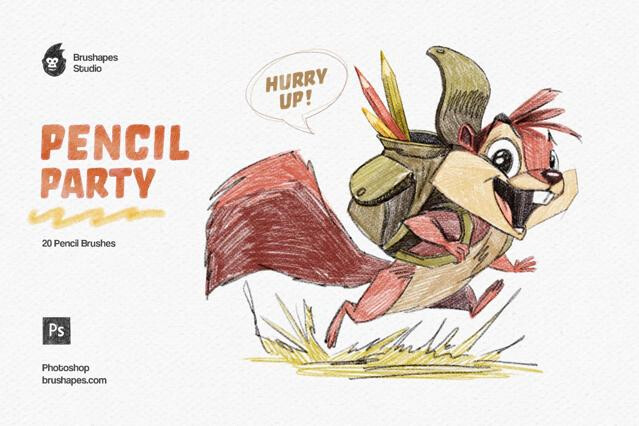
Pencil Party Photoshop Brushes
plus
Special
Exclusive
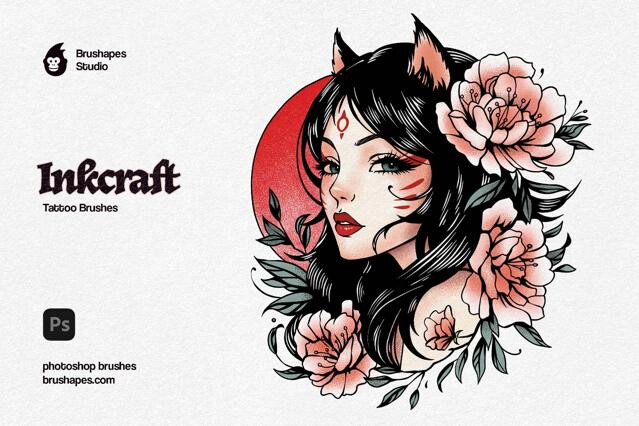
Tattoo Art Photoshop Brushes
plus
Burnout Ink Brushes for Photoshop
plus
Special
Exclusive
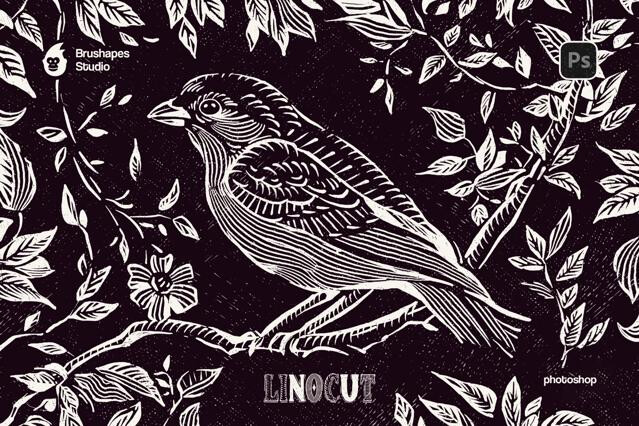
Photoshop Craftsman Linocut Brushes
plus
Special
Exclusive
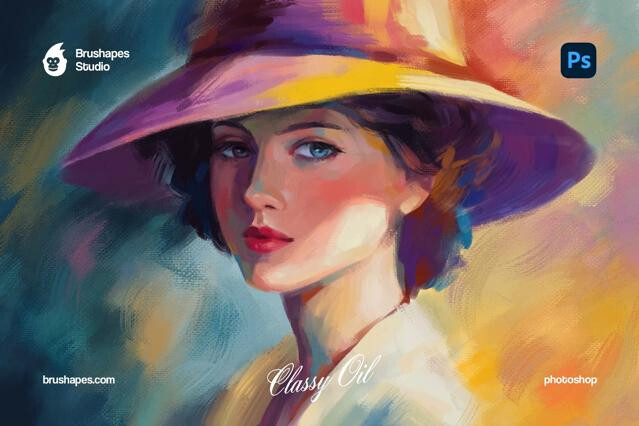
Classy Oil Photoshop Brushes
plus
Special
Exclusive
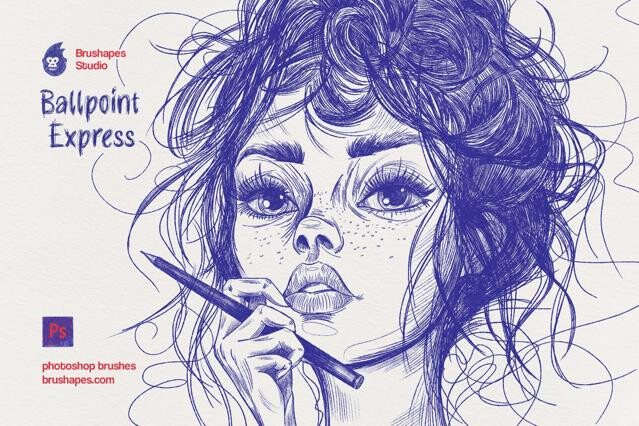
Ballpoint Pen Photoshop Brushes
plus
Special
Exclusive
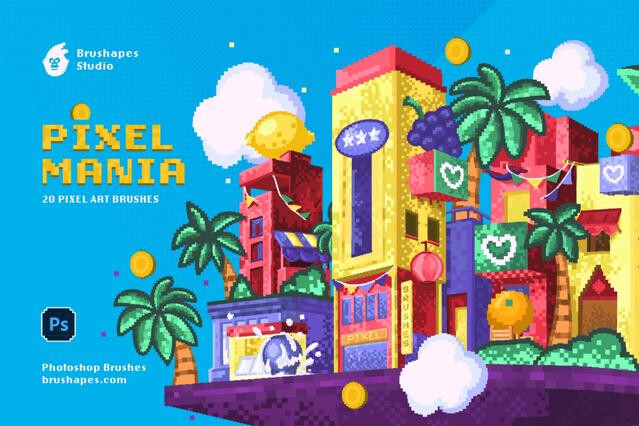
Pixel Mania Photoshop Brushes
plus
Special
Exclusive
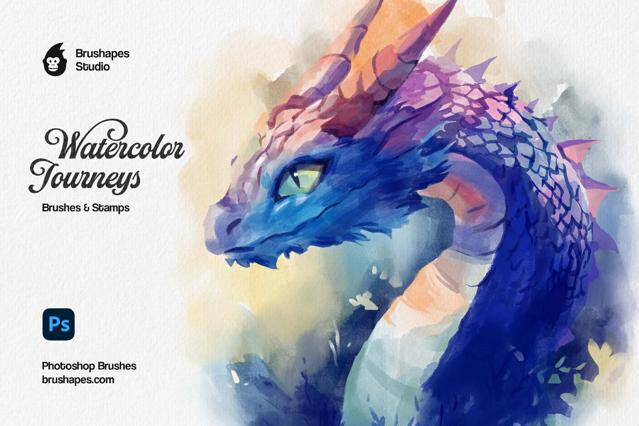
Watercolor Journey Photoshop Brushes
plus
Special
Exclusive
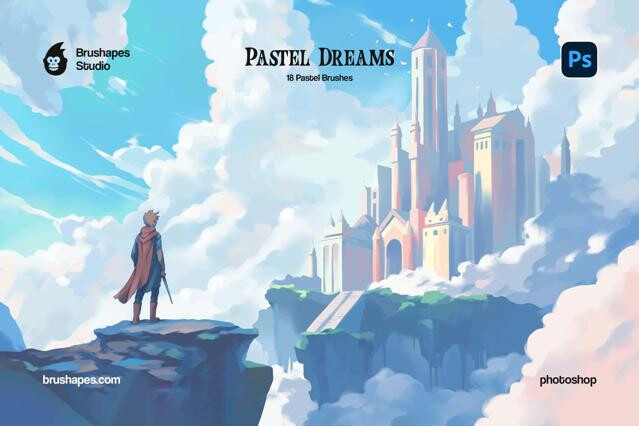
Pastel Dreams Photoshop Brushes
plus
Special
Exclusive
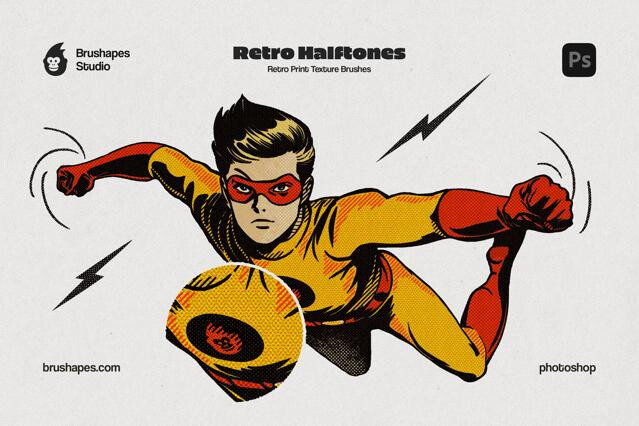
Retro Halftone Photoshop Brushes
plus
Special
Exclusive
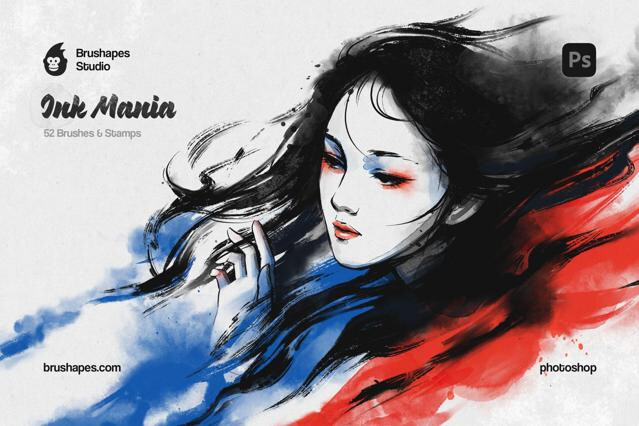
Ink Mania Photoshop Brushes
plus
Special
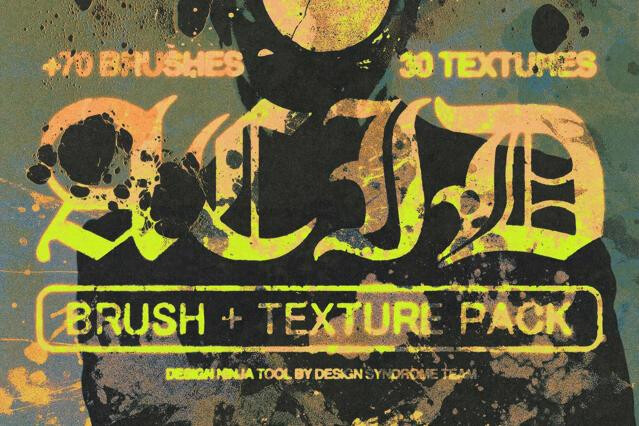
Acid Brush & Texture Pack
Acid Photoshop Brushes & Textures
plus
Special
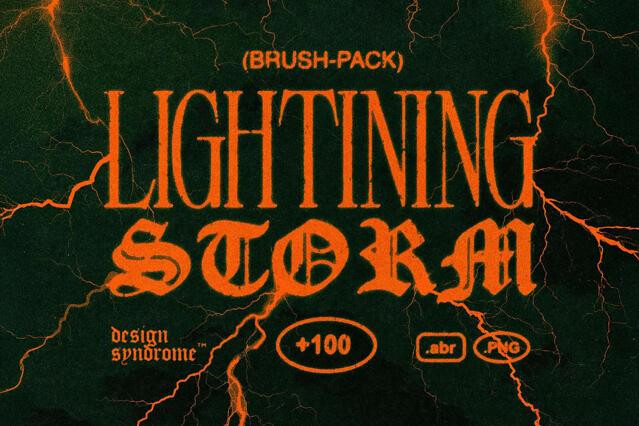
Lightning Storm Brush Pack
Lightning Storm Photoshop Brushes
plus
Special
Exclusive
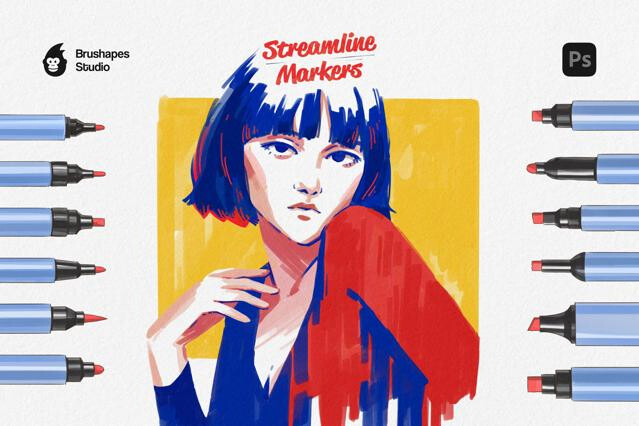
Streamline Markers - Photoshop Brushes
plus
Special
Exclusive
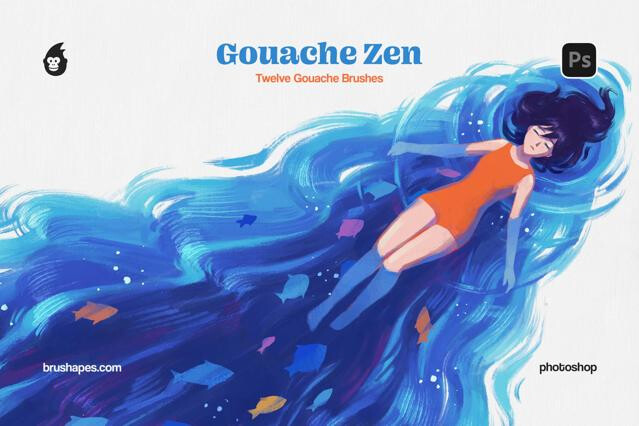
Gouache Zen Photoshop Brushes
plus
Special
Exclusive
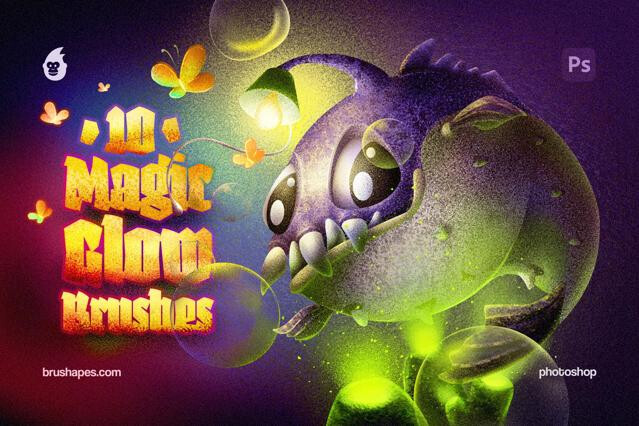
Magic Glow Photoshop Brushes
plus
Special
Exclusive
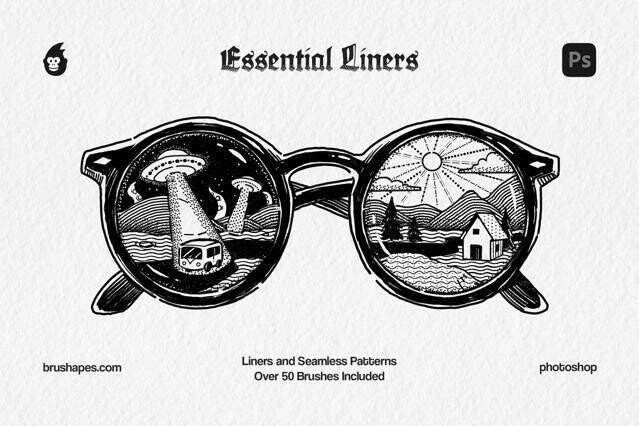
Photoshop Essential Liner Brushes
Essential Liner Photoshop Brushes
plus
Special
Exclusive
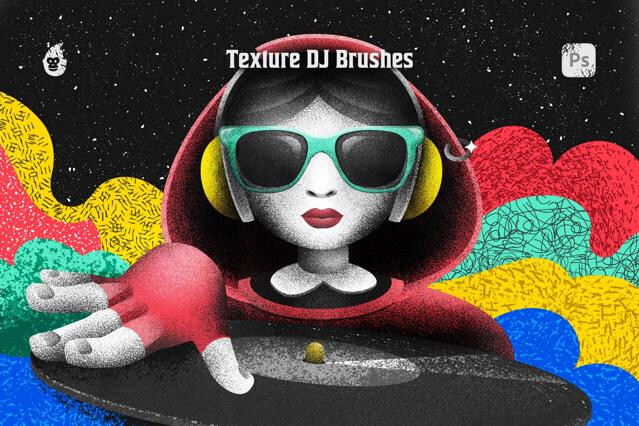
Texture DJ Brushes for Photoshop
Texture DJ Photoshop Brushes
plus
Grim Shader Photoshop Brushes
free
Special
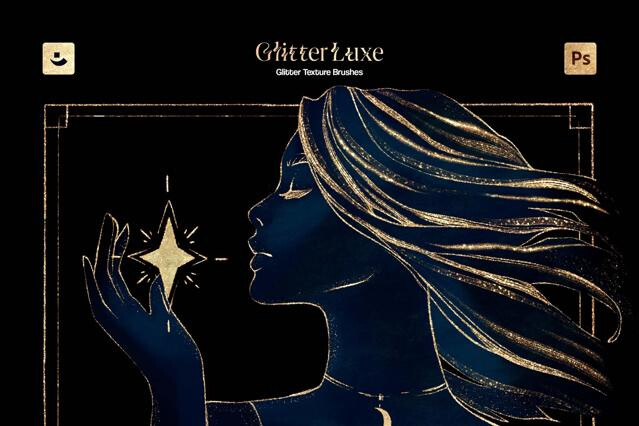
Photoshop Glitter Texture Brushes
Glitter Texture Photoshop Brushes
plus
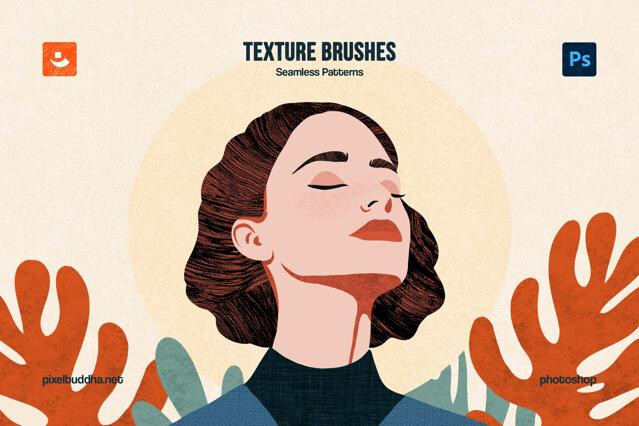
Photoshop Texture Brushes
Texture Photoshop Brushes
plus
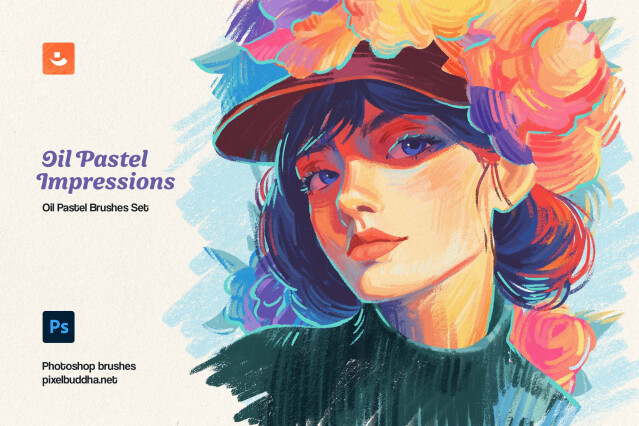
Photoshop Oil Pastel Brushes
Oil Pastel Photoshop Brushes
plus
Special
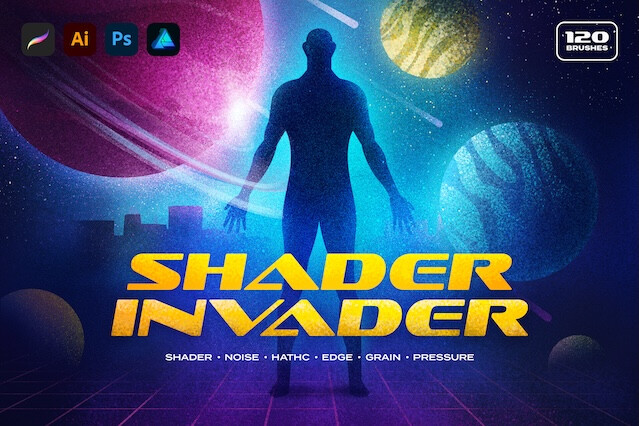
Shader Invader Brushes
plus
Special
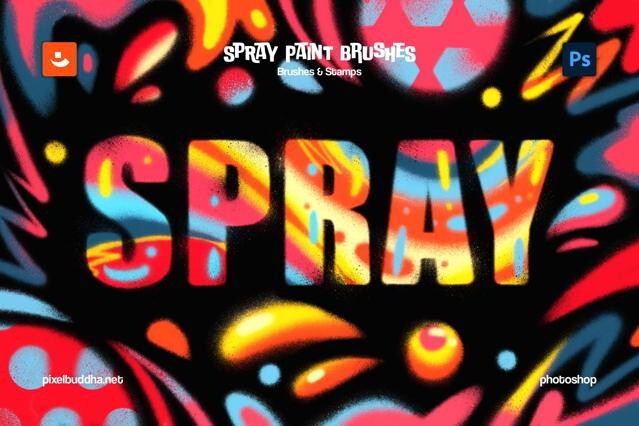
Spray Paint Photoshop Brushes
plus
Special
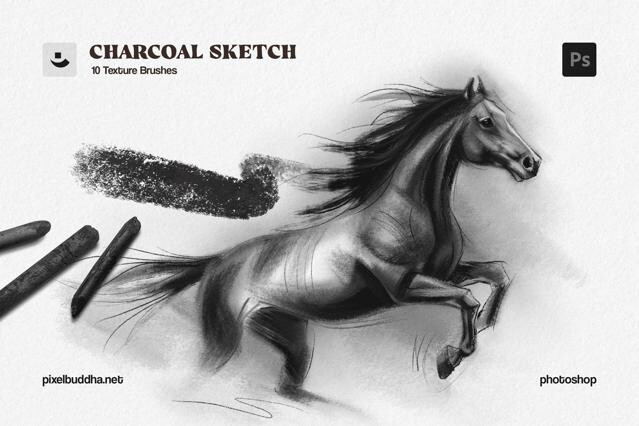
Charcoal Sketch Photoshop Brushes
plus
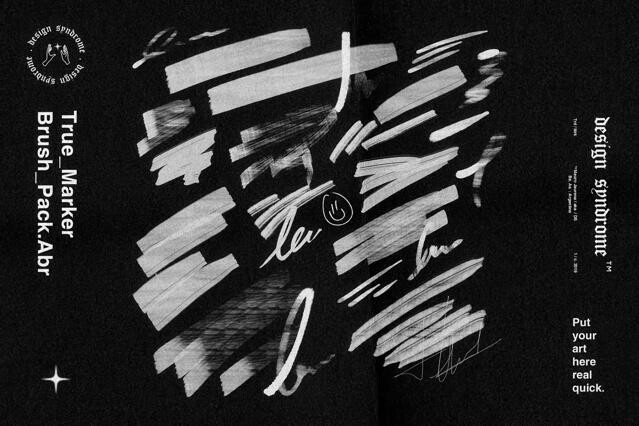
True Marker Photoshop Brushes
free
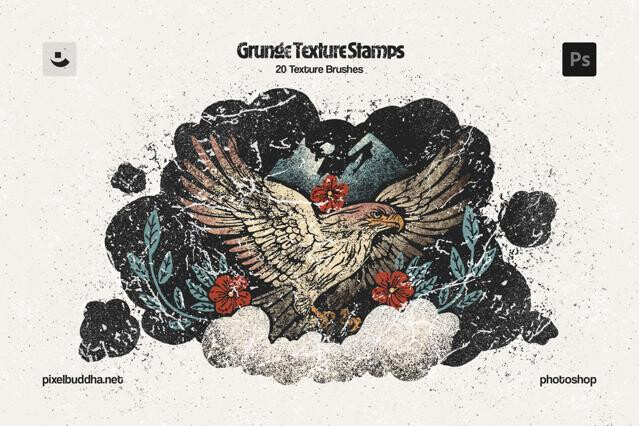
Grunge Stamp Photoshop Brushes
plus
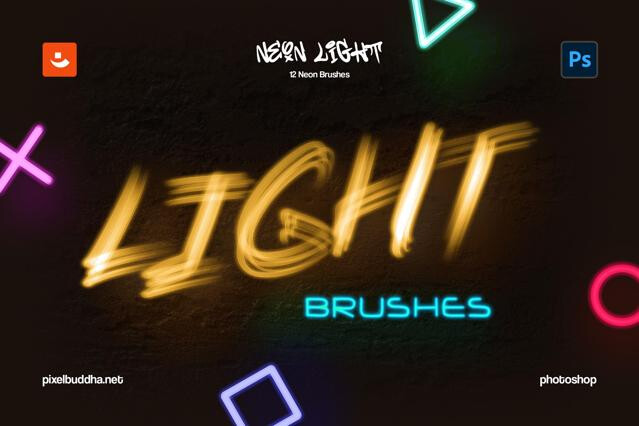
Neon Light Photoshop Brushes
plus
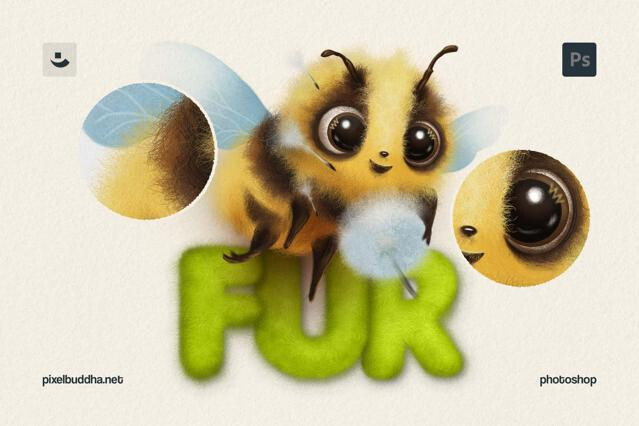
Fur Brushes for Photoshop
Fur Photoshop Brushes
plus
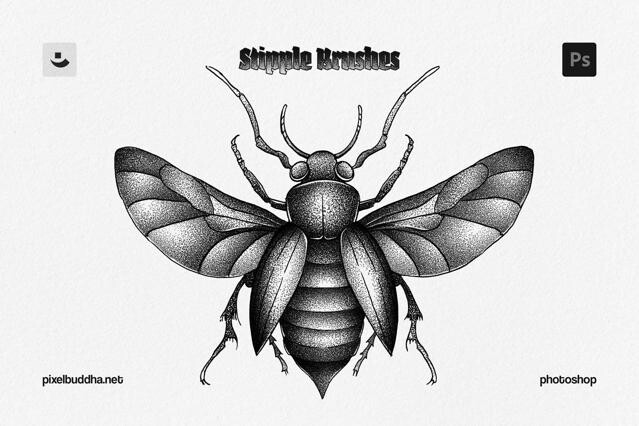
Photoshop Stipple Brushes
Stipple Photoshop Brushes
plus
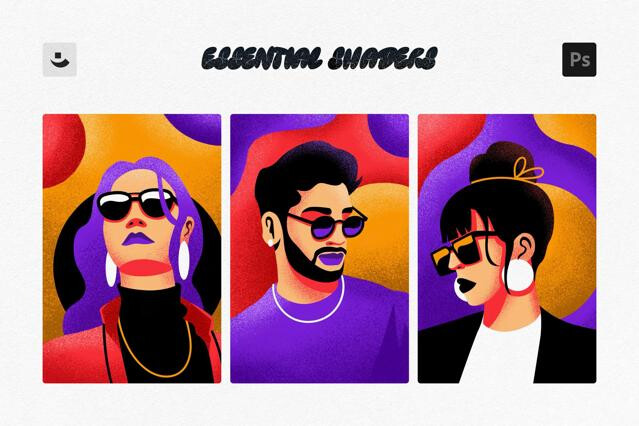
Essential Shading Photoshop Brushes
plus
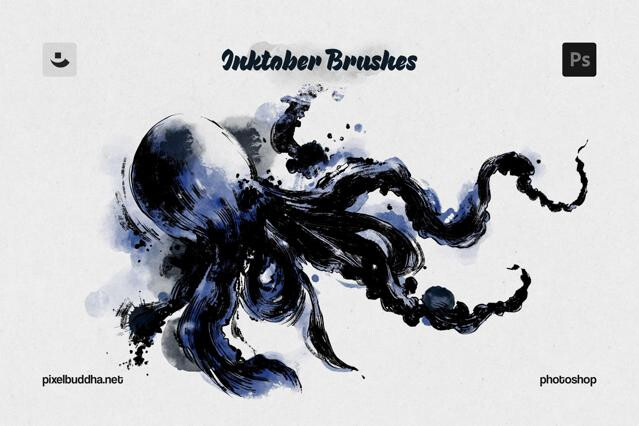
Inktober Photoshop Brushes
plus
Special
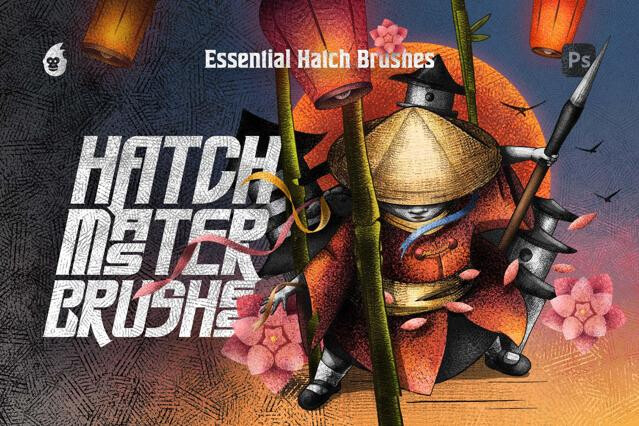
Hatch Master Brushes for Photoshop
Hatch Master Photoshop Brushes
plus
Special
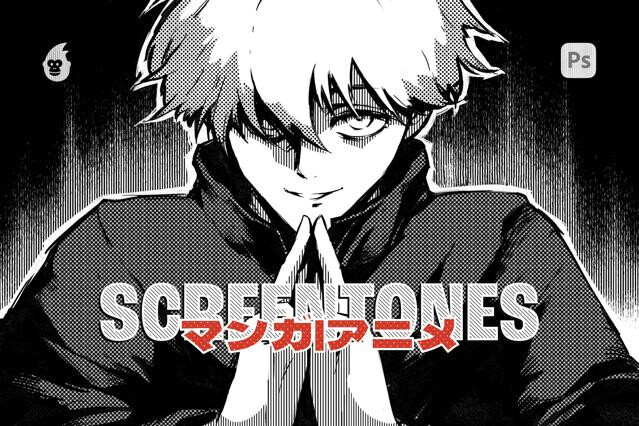
Manga Screentone Brushes for Photoshop
Manga Screentone Photoshop Brushes
plus
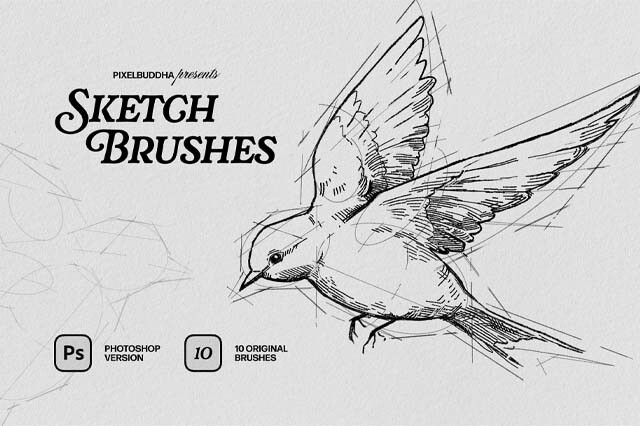
Sketch Photoshop Brushes
plus
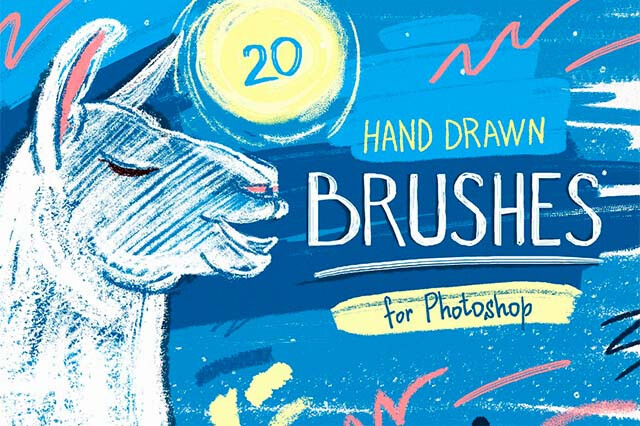
Essential Hand-Drawn Photoshop Brushes
plus
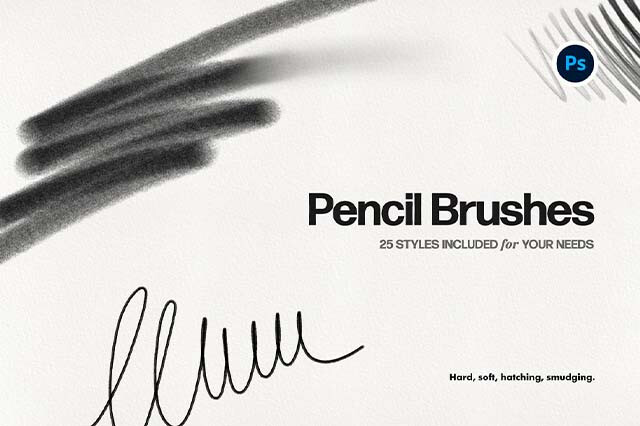
Pencil Photoshop Brushes
free
Special
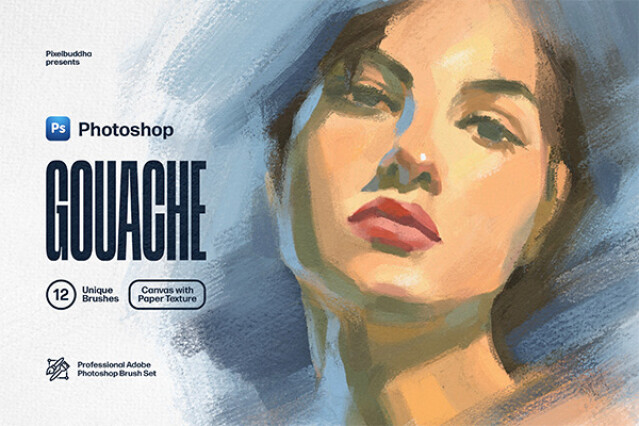
Gouache Photoshop Brushes Collection
plus
Special
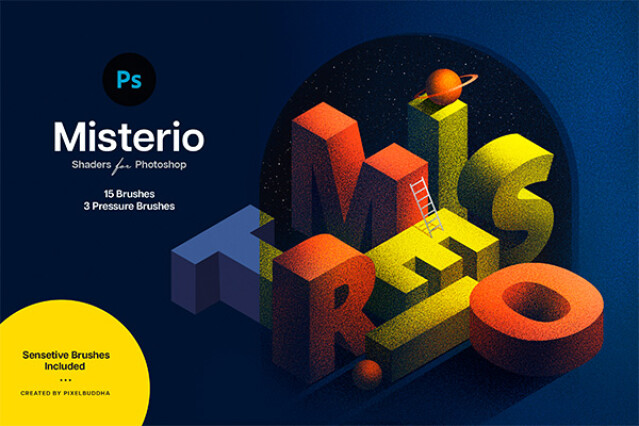
Misterio Shader Photoshop Brushes by Pixelbuddha
Misterio Shader Photoshop Brushes
plus
Special
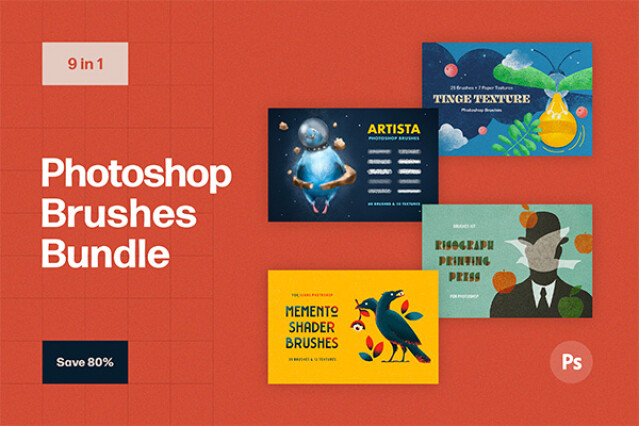
Photoshop Brushes Bundle by Pixelbuddha
Photoshop Brushes Bundle
plus
Special
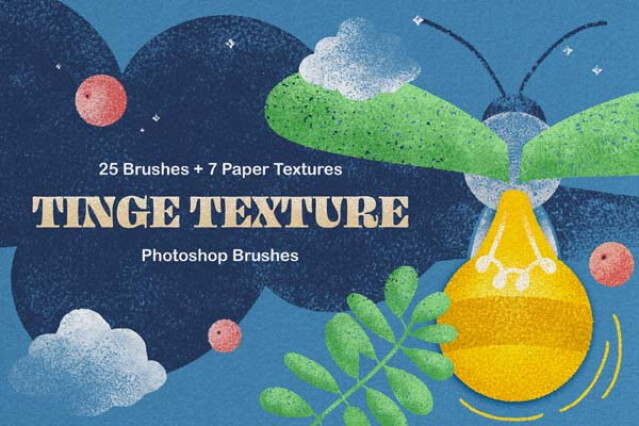
Tinge Texture Photoshop Brushes by Pixelbuddha
Tinge Texture Photoshop Brushes
plus
Special
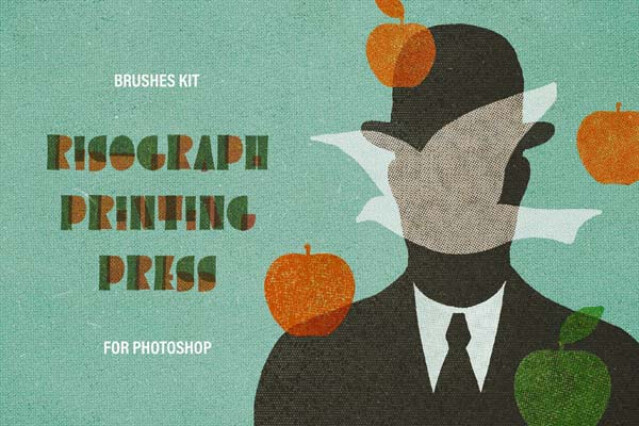
Printing Press Photoshop Brushes
plus
Special
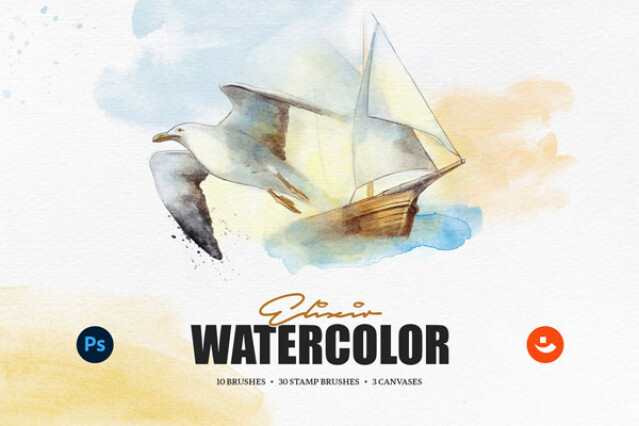
Elixir Watercolor Photoshop Brushes
plus
Special
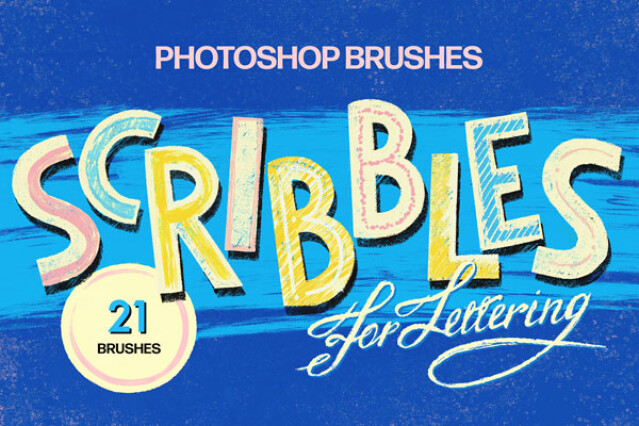
Scribbles Photoshop Brushes
plus
Retro Stippling Photoshop Brushes
plus
Special
Basic Pencil Photoshop Brushes
plus
Special
Stipple Photoshop Brushes
plus
Special
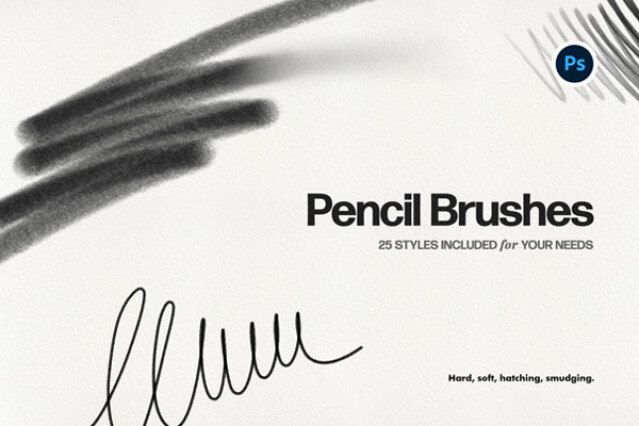
Pencil Photoshop Brushes
plus
Page of 2

What makes our brush packs unique

Our brushes are built for professional results and a smooth workflow. Each set features premium, high-resolution stamps and dynamic brushes, crafted from custom-made, realistic textures to retain crisp detail at print sizes and on retina screens. You can choose flexible license types — commercial for client and business use or extended to suit the most of ambitious goals.

Most collections are fully compatible across a wide range of Photoshop versions, from older CS releases to the newest Creative Cloud builds, ensuring consistent behavior on different machines. After purchase, you receive lifetime free updates, and existing customers get automatic updates through their account, so your toolkit stays current without extra effort.

Install Photoshop brushes in under 1 minute

Installing Photoshop brushes is quick and straightforward, and no technical setup is required. You can load .ABR files via the Brushes panel, import from the Preset Manager, or even drag and drop.

Method 1 — Brushes Panel (recommended)

  1. Open Photoshop and go to Window → Brushes.
  2. Click the panel menu (☰) and choose Import Brushes….
  3. Select the .ABR file from your download and click Open.
  4. Your brushes appear in a new folder at the bottom of the Brushes list.

Method 2 — Drag & Drop

  1. Locate the .ABR file in your file explorer.
  2. Drag it onto the Photoshop window.
  3. Brushes load instantly into the Brushes panel.

Method 3 — Preset Manager (legacy workflow)

  1. Go to Edit → Presets → Preset Manager….
  2. Choose Preset Type: Brushes.
  3. Click Load…, select the .ABR, and press Done.

Tip: Keep your brush library tidy: right-click a brush group to Rename or Export Selected Brushes for quick backups.

Create your own brush when presets aren’t enough

Custom brushes help you nail a very specific texture, stroke, or pattern for a unique project. It’s easier to snap a distressed texture onto your design via a suitable brush than to draw all the imperfections manually. Photoshop makes this process fast: define a shape, set dynamics, and save it. You can build from scans, photos, or simple painted marks and turn them into reusable tools.

Method 1 — From a painted shape

  1. Create a new document with a white background.
  2. Paint or paste a black shape (higher contrast gives cleaner edges).
  3. Go to Edit → Define Brush Preset…, name your brush, click OK.
  4. Open Window → Brushes and select your new brush.
  5. In Brush Settings, adjust Spacing, Shape Dynamics, Scattering, Transfer for realistic behavior.
  6. Click the (+) icon in the Brushes panel and Save as New Brush.

Tip: Check Include Tool Settings when saving the brush if you want Photoshop to remember not just the brush dynamics, but also related tool behavior (e.g., opacity, blend mode, smoothing).

Method 2 — From an image texture

  1. Place a texture (e.g., paper grain) on a new document.
  2. Convert to grayscale, then use Levels to boost contrast.
  3. Select the texture area (Ctrl/Cmd-A) → Edit → Define Brush Preset….
  4. Fine-tune in Brush Settings (use Dual Brush for complex breakup).
  5. Save the brush to keep your settings.

Important: For better results, start with large source images (2000–4000 px) and keep them high-contrast before defining the preset.

Tips & Tricks for Adobe Photoshop brushes

  • Work with layers, not erasers. Instead of erasing strokes you don’t like, paint on separate layers. You can mask or adjust opacity later without losing the original work. This keeps your workflow flexible.
  • Use blend modes creatively. Apply brushes on layers set to Overlay, Multiply, or Soft Light to add shading, textures, and highlights without altering the base artwork. It’s faster than manual blending.
  • Adjust brush opacity with numbers. Pressing keys 1–0 changes opacity in 10% increments (e.g., 5 = 50%). Combine with pressure sensitivity for subtle tonal control, which is essential for building up a realistic painting effect.
  • Rotate the canvas, not your wrist. Use R to temporarily rotate the canvas while brushing. It makes inking or shading more natural, especially with a tablet.
  • Quickly resize brushes. Hold Alt + Right-Click (Windows) or Control + Option (Mac) and drag to change brush size and hardness on the fly. It speeds up switching between fine details and broad strokes.
  • Mix textures with layer masks. Load textured brushes into a mask instead of directly on the artwork. This gives you a non-destructive grunge texture, scratches, or fades that can be refined later.
  • Save brush sets per project. Export brushes you’ve used for a specific client or artwork. So, if you return months later, your exact toolkit is ready to reload.
Pixelbuddha logo

We’re Pixelbuddha — a team passionate about creating free & premium resources for the professional community

Downloads
Mockups Effects Fonts Graphics
Textures Brushes Text Effects Templates
Presentations Patterns UI/UX Resources Social Media
Design Blog
Design tutorials Selections Interviews Articles
Company
About studio Contact us Submit your assets
Reading
Commercial License Membership FAQ
Join the Community

Follow our social profiles no to miss out on new releases from our studio. Create a free account to download hundreds of free design resources.

Terms of Service Affiliate Center Affiliate Terms
© 2026 Pixelbuddha Studio, All rights reserved